
Up and running. In four steps.
Choose your system and follow along.
 Step 01
Download Substy
Choose your version above and download the file.
- Step 02
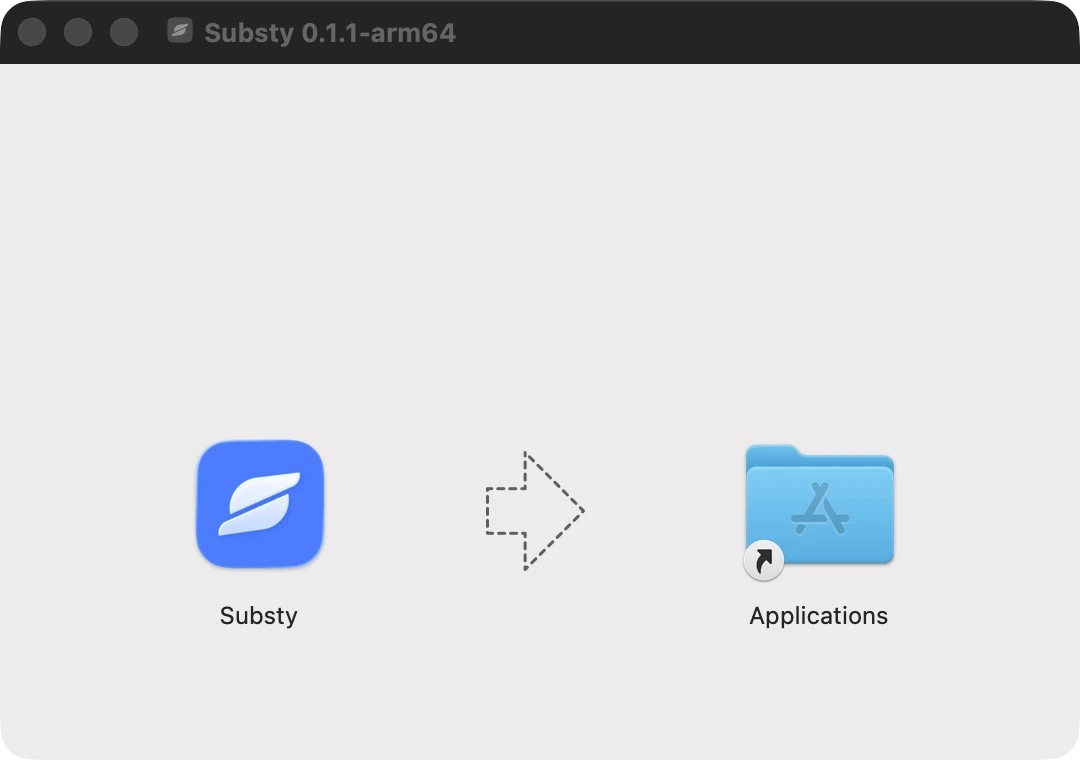
Install the app
Drag Substy into your Applications folder.
 Step 03
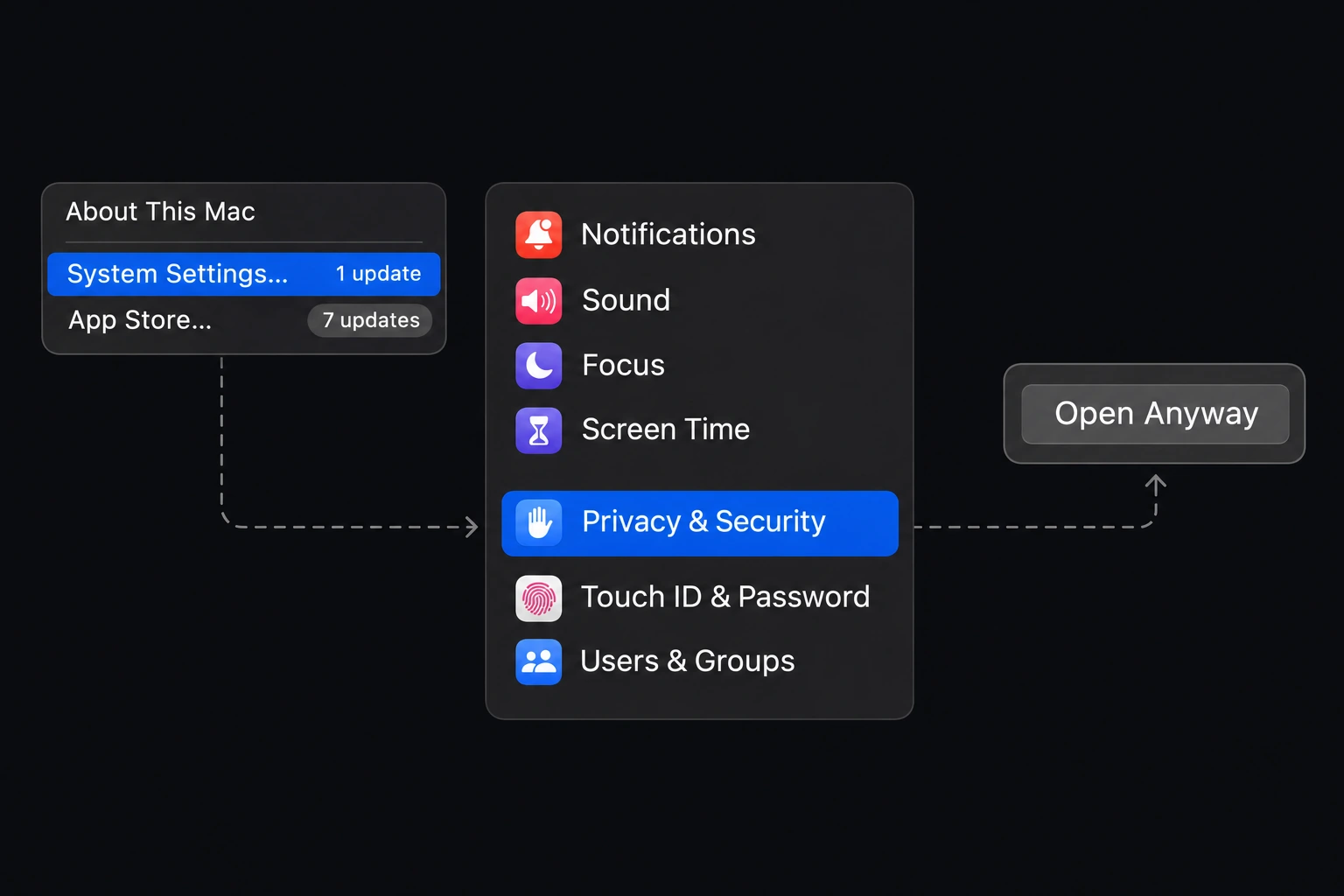
Allow the app
If macOS blocks the first launch: System Settings → Privacy & Security → Open Anyway. Confirm Open for Substy.
 Step 04
Sign in. You’re ready.
Open Substy and sign in with your account.
 ⟶
- Step 01
Download Substy
Choose your version above and download the file.
 Step 02
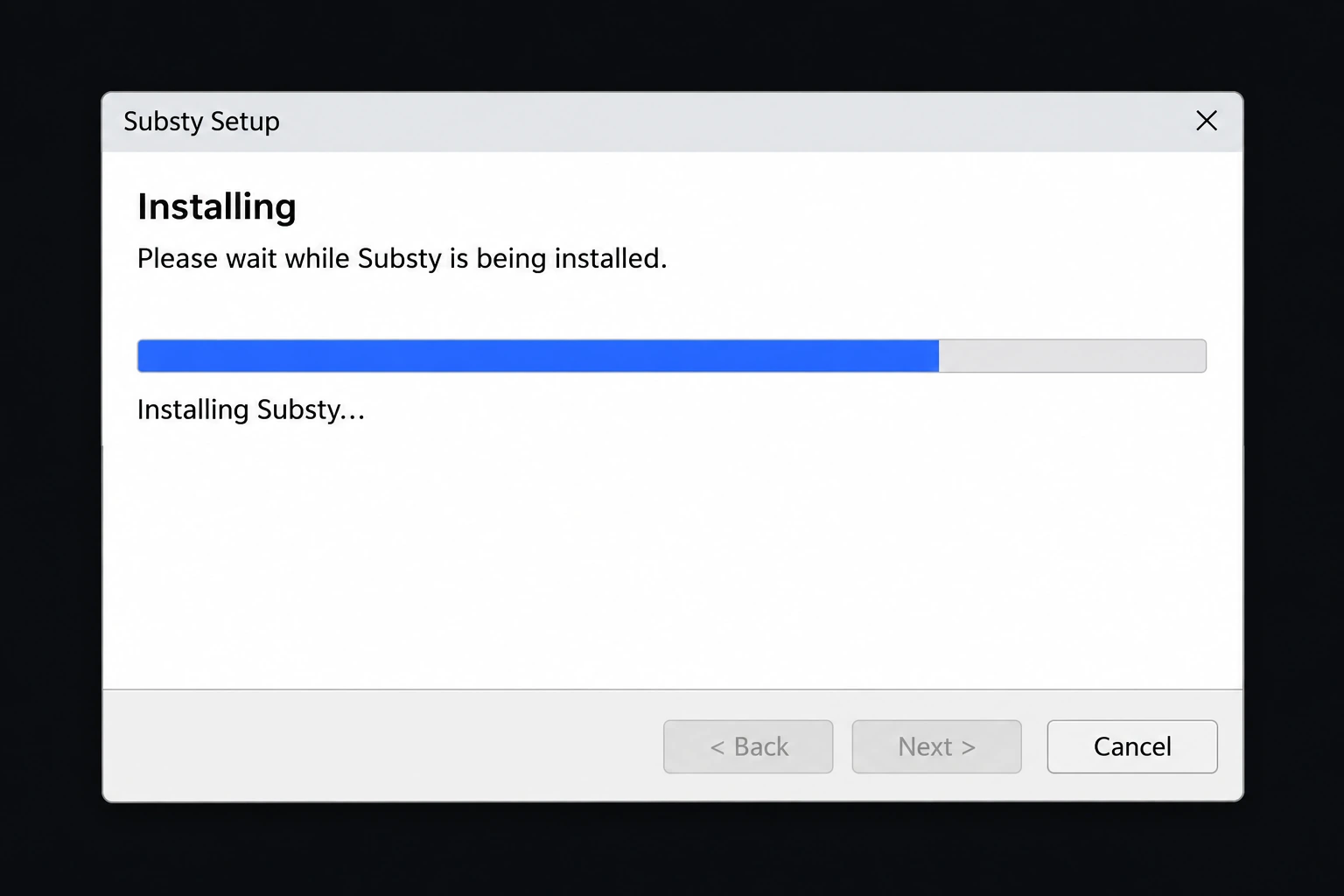
Install the app
Run the installer and follow the instructions.
 Step 03
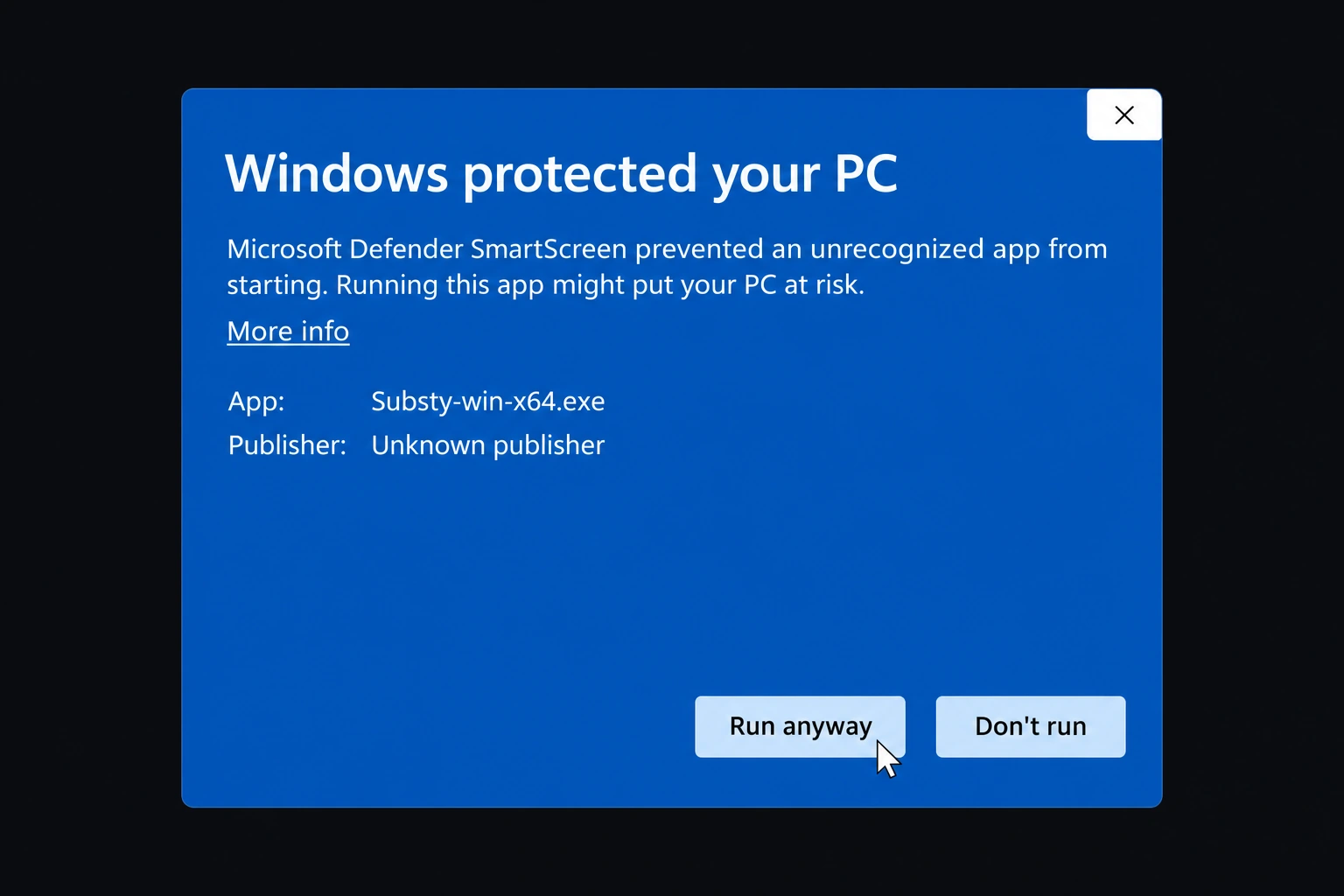
Allow the app
If SmartScreen flags this installer as unrecognized: More info → Run anyway, if available.
- Step 04
Sign in. You’re ready.
Open Substy and sign in with your account.
- Step 01
Download Substy
Choose your version above and download the file.
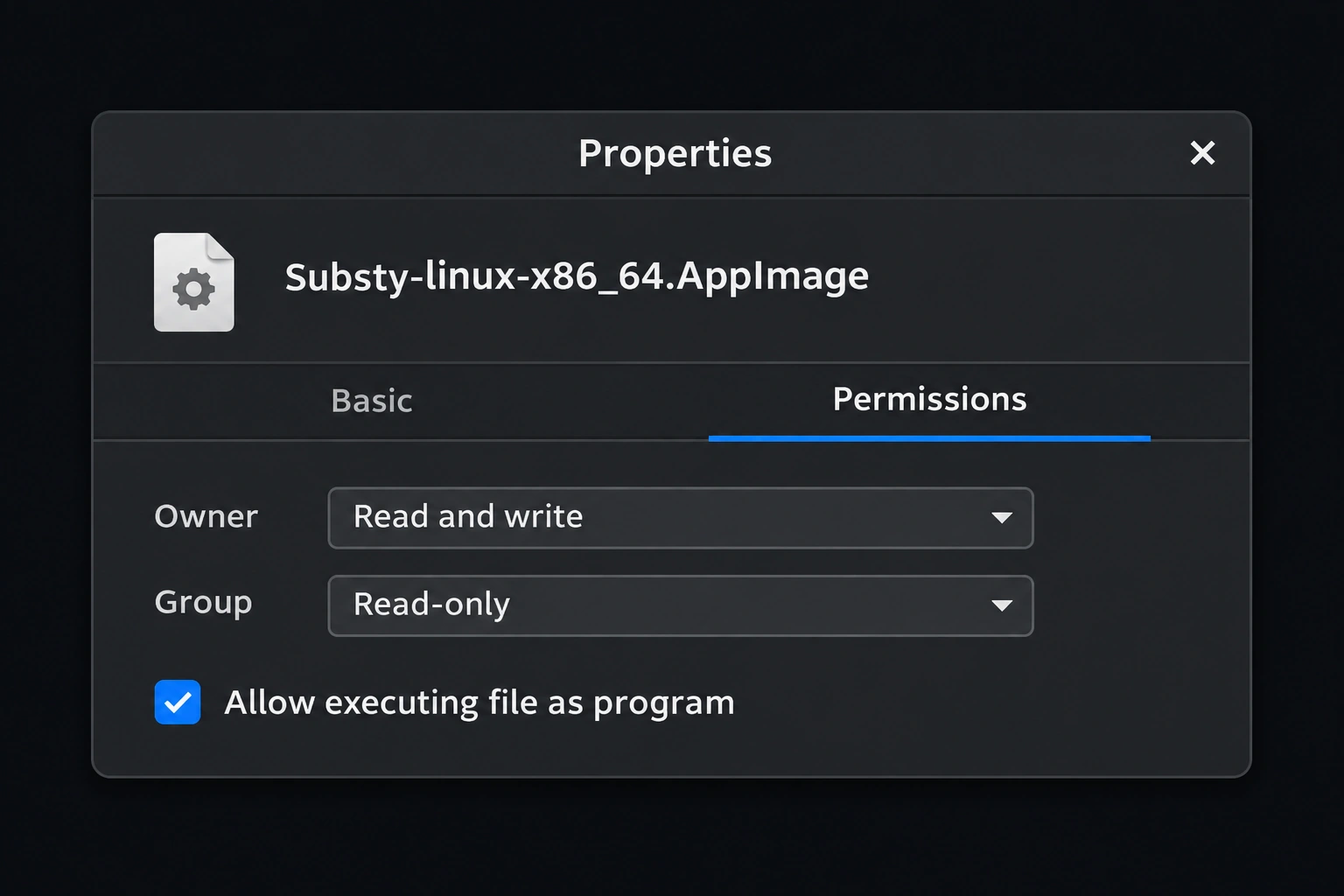 Step 02
Allow the app to run
Right-click the AppImage → Properties → Permissions. Allow it to run as a program.
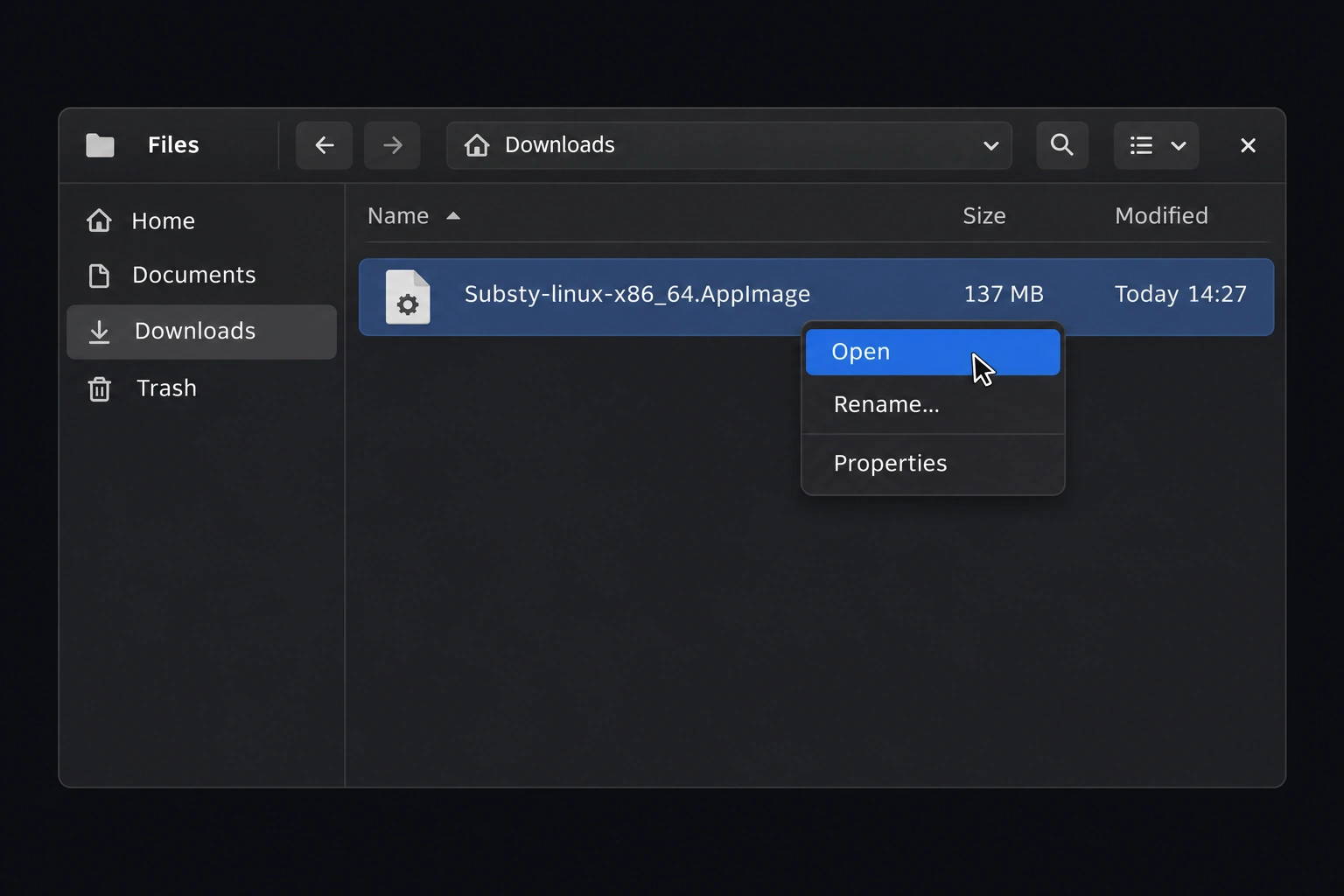 Step 03
Open Substy
Double-click the AppImage, or right-click and choose Open.
- Step 04
Sign in. You’re ready.
Open Substy and sign in with your account.
A few things
before you start.
Which Mac download should I choose?+
In the Apple menu, open About This Mac. Choose Apple Silicon for an Apple M-series chip, or Intel for an Intel processor.
Do I need a new Substy account?+
Use your existing Substy account when the app asks you to sign in. New to Substy? Create an account on the web first.
Need help with installation?+
Contact the Substy team with your operating system and the message you see. We’ll help you get started.