Meet the desktop app

Substy. Now on
your desktop.

Your creator workspace has a new home.
Download Substy Browser for Mac, Windows or Linux.

Download

Up and running. In four steps.

Choose your system and follow along.

  1. Download Substy
    Step 01

    Download Substy

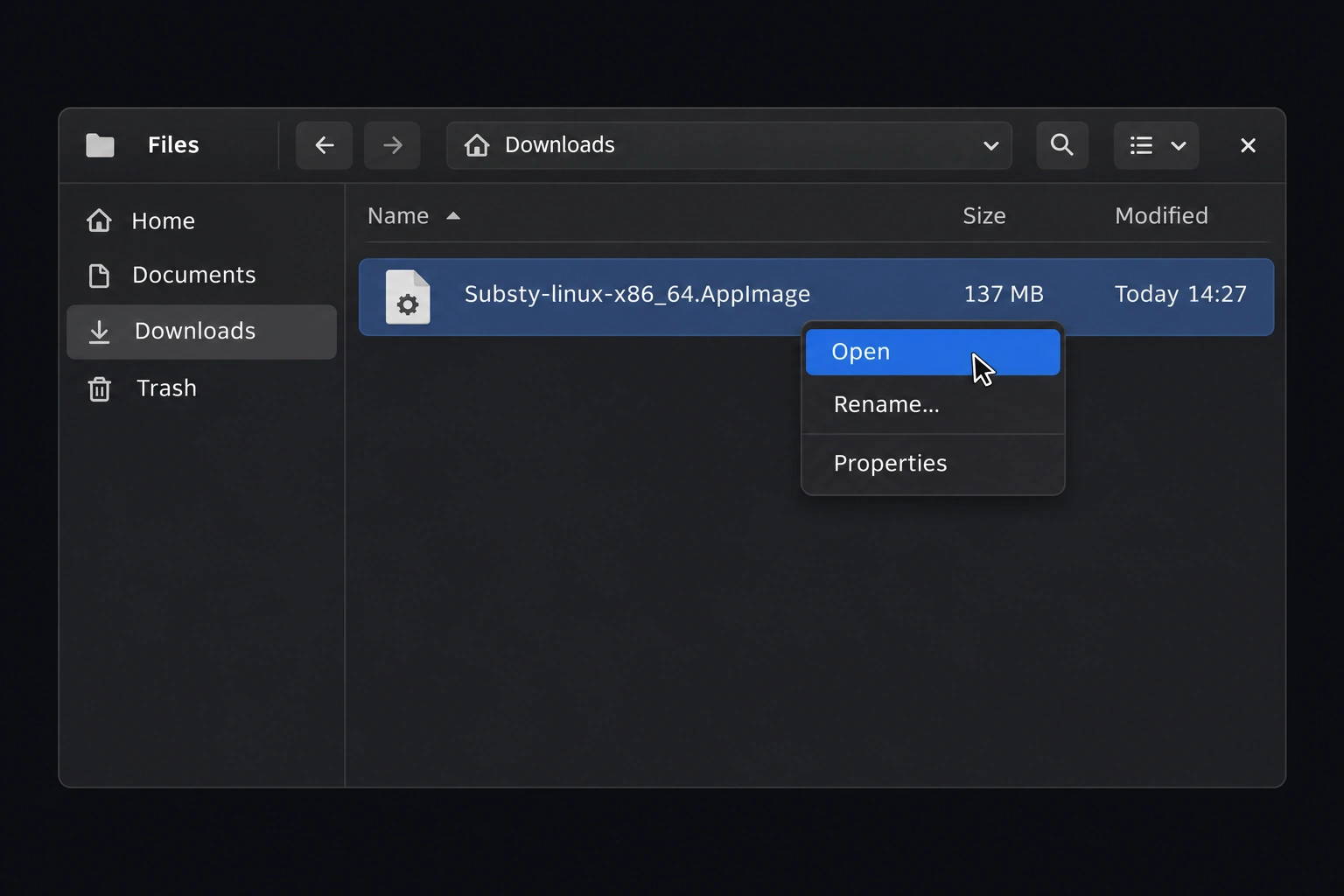
    Choose your version above and download the file.

  2. Step 02

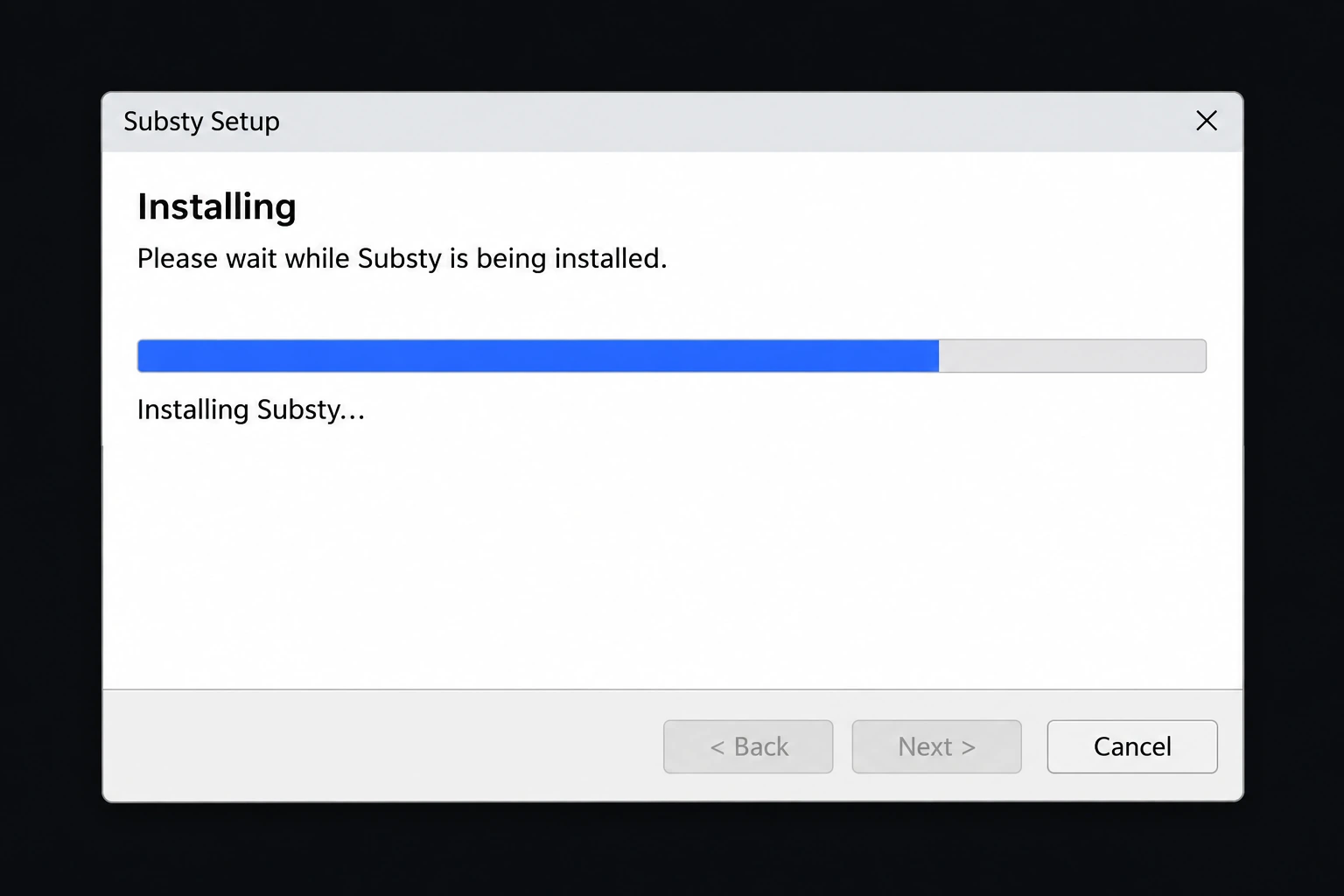
    Install the app

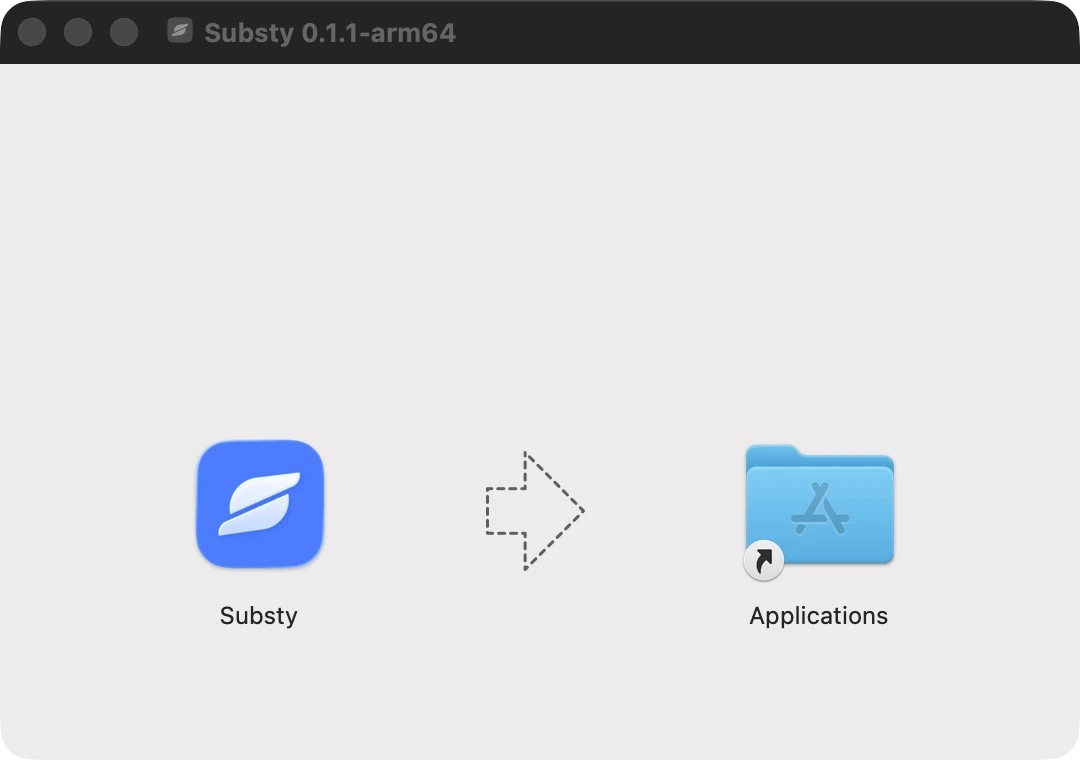
    Drag Substy into your Applications folder.
  3. Allow the app
    Step 03

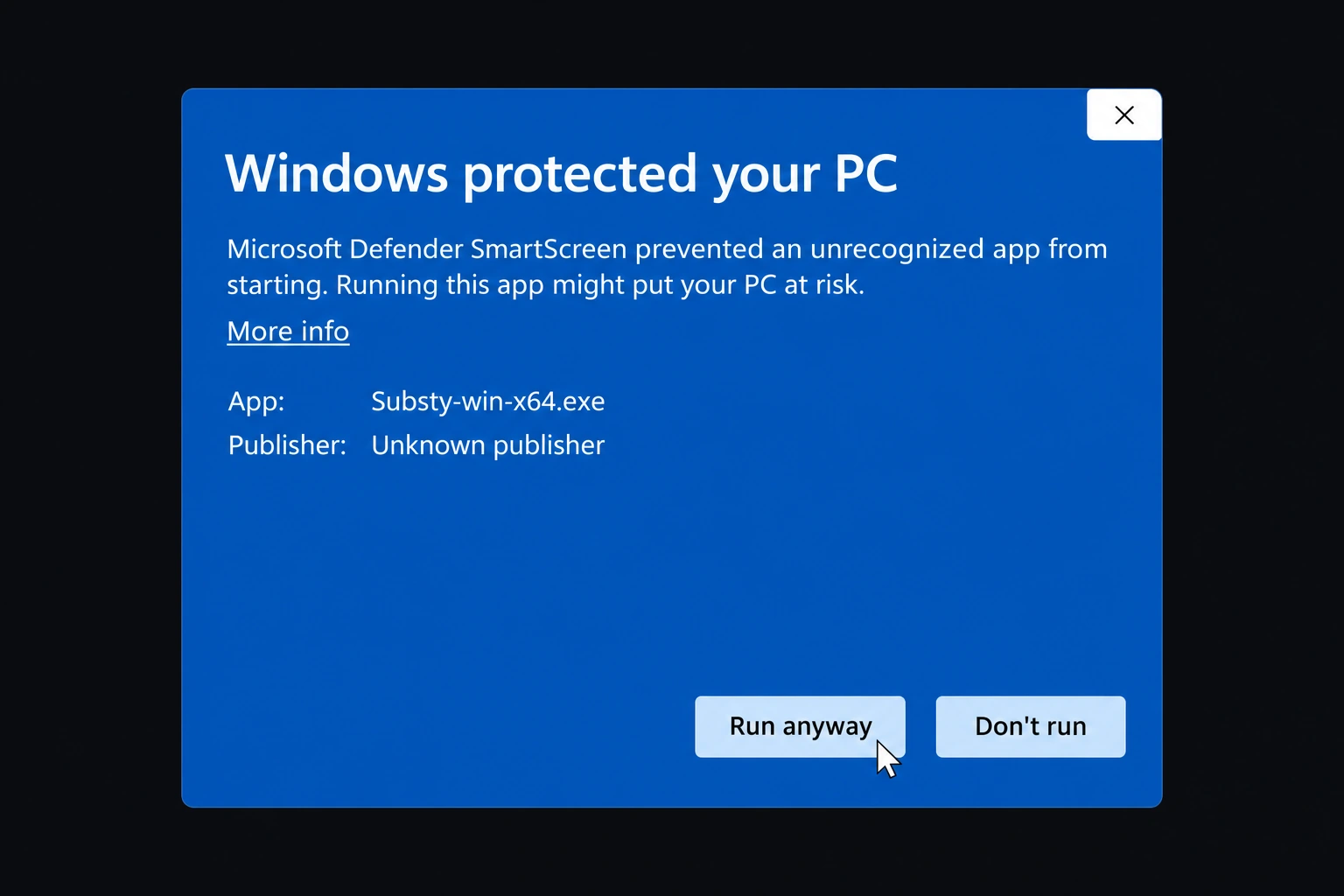
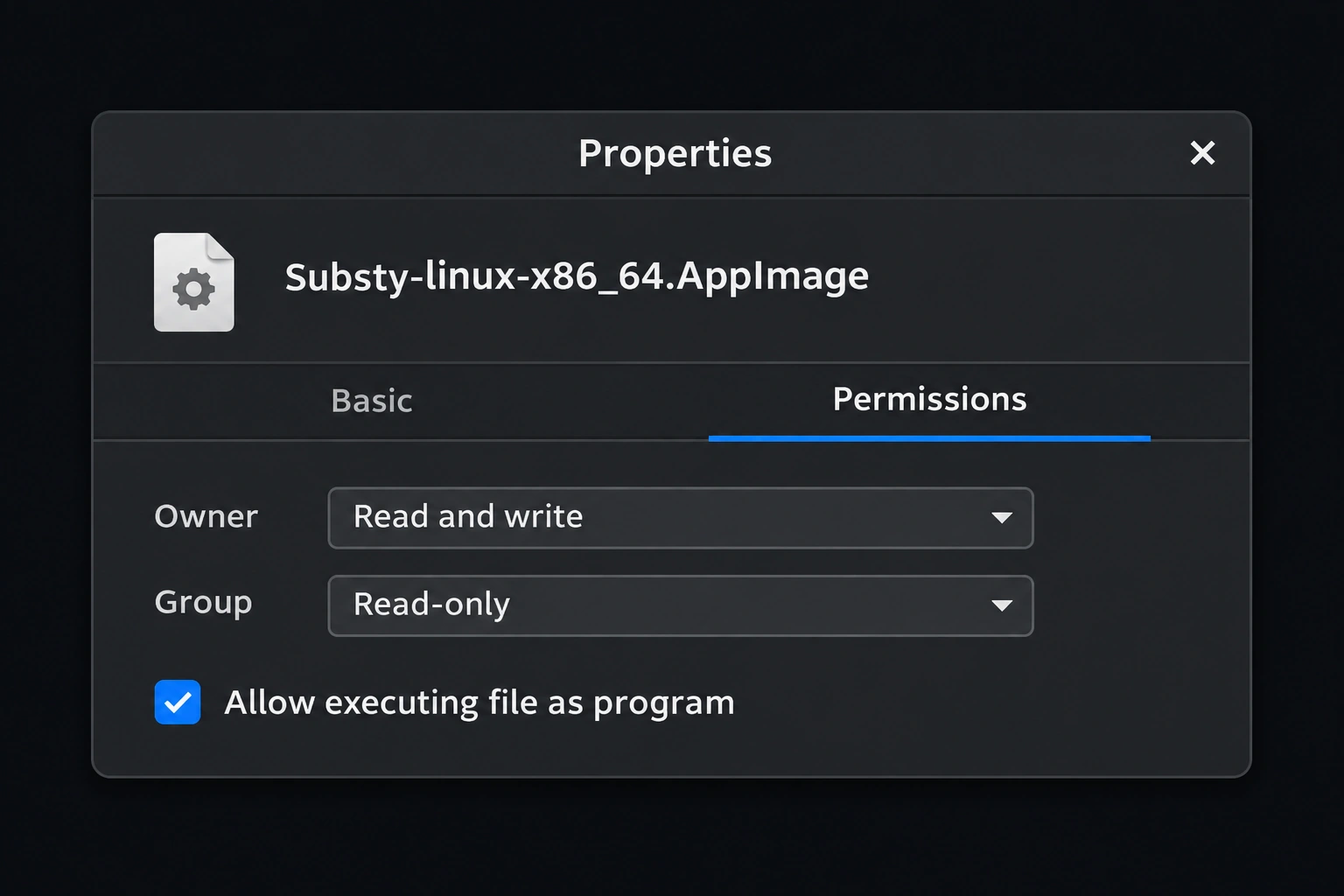
    Allow the app

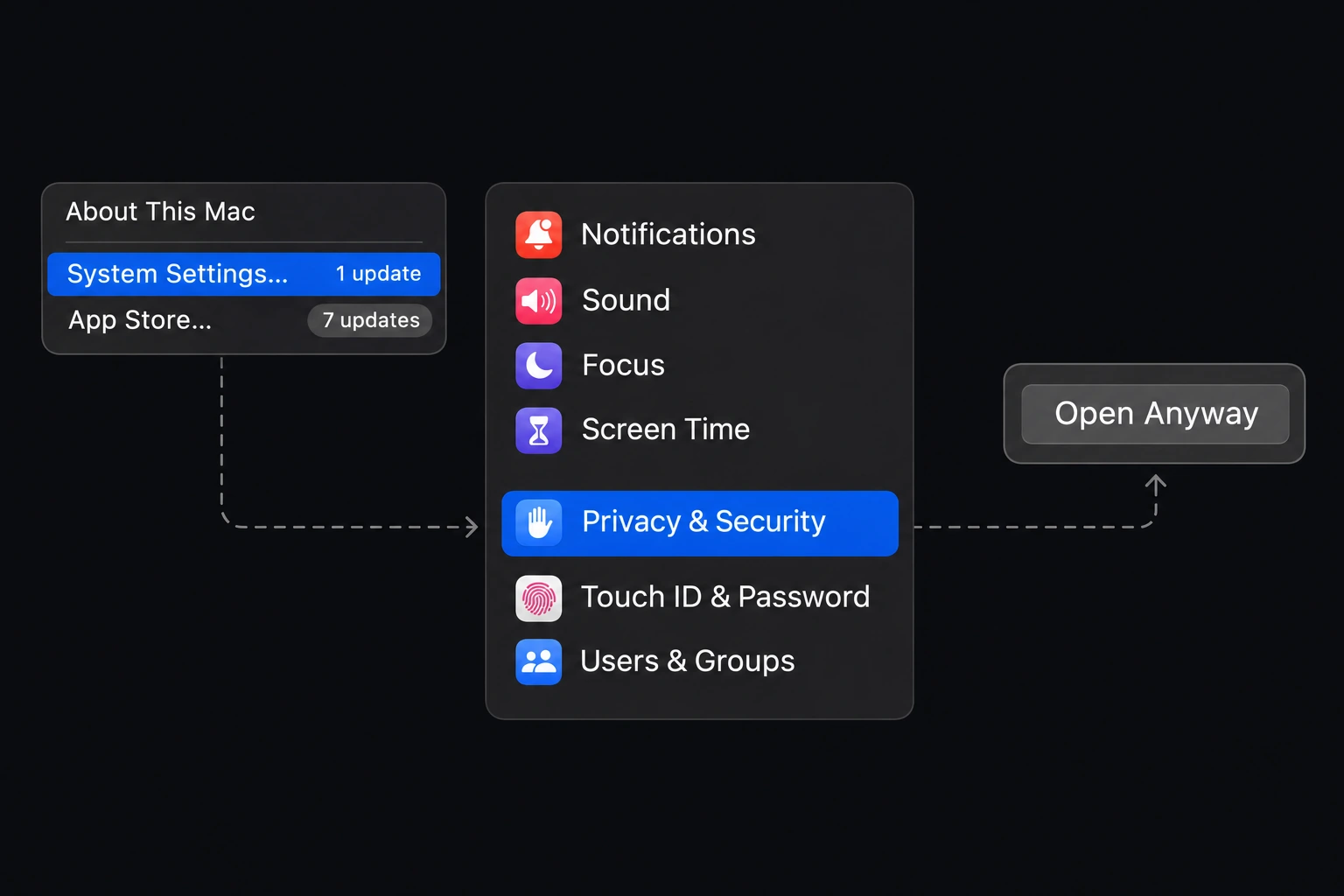
    If macOS blocks the first launch: System Settings → Privacy & Security → Open Anyway. Confirm Open for Substy.

  4. Substy
    Step 04

    Sign in. You’re ready.

    Open Substy and sign in with your account.
A few things
before you start.

Which Mac download should I choose?+

In the Apple menu, open About This Mac. Choose Apple Silicon for an Apple M-series chip, or Intel for an Intel processor.

Do I need a new Substy account?+

Use your existing Substy account when the app asks you to sign in. New to Substy? Create an account on the web first.

Need help with installation?+

Contact the Substy team with your operating system and the message you see. We’ll help you get started.

THE DESKTOP APP

Your Substy workspace.
Right on your desktop.

Découvrez l’application desktop

Substy. Maintenant
sur votre ordinateur.

Votre espace créateur a une nouvelle adresse.
Téléchargez Substy Browser pour Mac, Windows ou Linux.

Télécharger

Prêt en quatre étapes.

Choisissez votre système et suivez le guide.

  1. Téléchargez Substy
    Étape 01

    Téléchargez Substy

    Choisissez votre version ci-dessus et téléchargez le fichier.

  2. Étape 02

    Installez l’application

    Glissez Substy dans votre dossier Applications.

  3. Autorisez l’application
    Étape 03

    Autorisez l’application

    Si macOS bloque le premier lancement : Réglages Système → Confidentialité et sécurité → Ouvrir quand même. Confirmez pour Substy.

  4. Substy
    Étape 04

    Connectez-vous. C’est prêt.

    Ouvrez Substy et connectez-vous à votre compte.

Avant de
vous lancer.

Apple Silicon ou Intel : quelle version choisir ?+

Dans le menu Apple, ouvrez À propos de ce Mac. Choisissez Apple Silicon pour une puce Apple de série M, ou Intel pour un processeur Intel.

Faut-il créer un nouveau compte Substy ?+

Utilisez votre compte Substy existant lorsque l’application vous invite à vous connecter. Vous découvrez Substy ? Créez d’abord votre compte sur le web.

Besoin d’aide pour l’installation ?+

Contactez l’équipe Substy en précisant votre système et le message affiché. Nous vous aiderons à démarrer.

L’APPLICATION DESKTOP

Votre espace Substy.
Directement sur votre ordinateur.

Die neue Desktop-App

Substy. Jetzt auf
deinem Desktop.

Dein Creator-Workspace hat ein neues Zuhause.
Lade Substy Browser für Mac, Windows oder Linux herunter.

Herunterladen

In vier Schritten startklar.

Wähle dein System und folge der Anleitung.

  1. Substy herunterladen
    Schritt 01

    Substy herunterladen

    Wähle oben deine Version und lade die Datei herunter.

  2. Schritt 02

    App installieren

    Ziehe Substy in deinen Programme-Ordner.

  3. App erlauben
    Schritt 03

    App erlauben

    Falls macOS den ersten Start blockiert: Systemeinstellungen → Datenschutz & Sicherheit → Dennoch öffnen. Bestätige für Substy.

  4. Substy
    Schritt 04

    Anmelden. Loslegen.

    Öffne Substy und melde dich mit deinem Konto an.

Gut zu wissen,
bevor du startest.

Apple Silicon oder Intel – welche Version brauche ich?+

Öffne im Apple-Menü Über diesen Mac. Wähle Apple Silicon für einen Apple-Chip der M-Serie oder Intel für einen Intel-Prozessor.

Brauche ich ein neues Substy-Konto?+

Verwende dein bestehendes Substy-Konto, wenn die App dich zur Anmeldung auffordert. Neu bei Substy? Erstelle dein Konto zuerst im Web.

Brauchst du Hilfe bei der Installation?+

Kontaktiere das Substy-Team und nenne dein Betriebssystem und die angezeigte Meldung. Wir helfen dir beim Einstieg.

DIE DESKTOP-APP

Dein Substy-Workspace.
Direkt auf deinem Desktop.